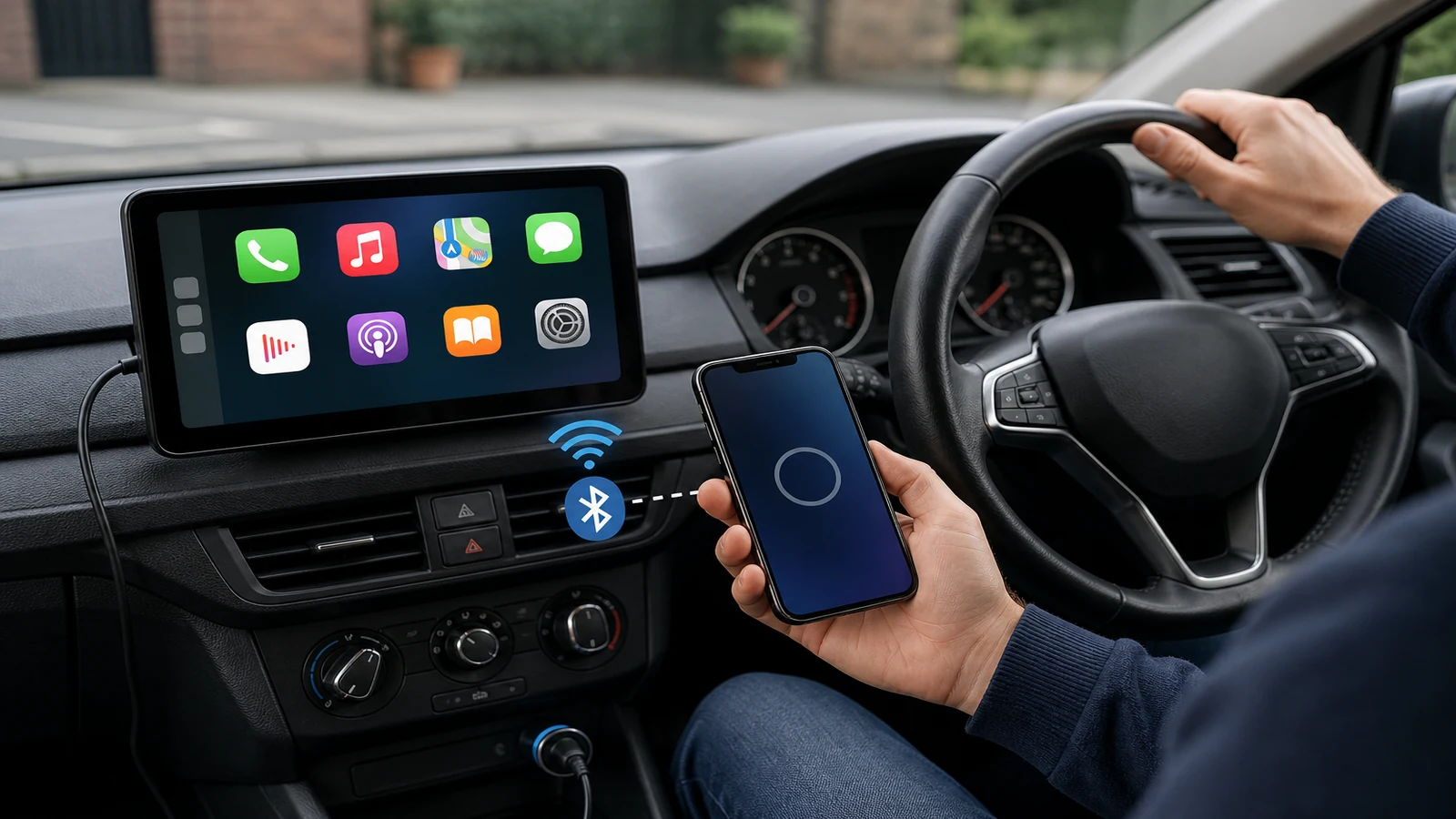
How to pair wireless Apple CarPlay portable screen UK
Wireless CarPlay on a portable display is not magic, but the order of steps matters. Most UK setups need stable 12V power, Bluetooth for the first handshake, then Wi-Fi for the CarPlay session. This checklist walks through a typical portable screen without promising identical menus on every brand.
Before you start
Park safely with the handbrake on. Confirm your iPhone runs a recent iOS version that supports wireless CarPlay—Apple publishes compatibility guidance on its support site if you are unsure. Have your portable screen mounted where you can reach it and a working cigarette-lighter or accessory socket.
Power on and enable phone radios
- Plug the screen into 12V power and wait for it to finish booting.
- On the iPhone, turn Bluetooth and Wi-Fi on. Personal hotspot can stay off unless the manual for your unit says otherwise.
- Clear old CarPlay pairings if you previously used another adapter: Settings → General → CarPlay → forget unused cars.
Bluetooth then Wi-Fi for wireless CarPlay
- Open the screen’s Bluetooth settings and make the unit discoverable if prompted.
- On the iPhone, choose the screen when it appears under available devices and accept pairing codes if shown.
- When asked, allow Apple CarPlay and agree to use the screen for calls and navigation.
- Let the unit switch the CarPlay data link to Wi-Fi. The first connection can take a minute; later starts are usually faster.
- Set the screen as a preferred CarPlay device if iOS offers that option.
Audio may route through the screen’s speaker, AUX, FM or Bluetooth to your car stereo depending on how you cabled the unit. Check the product page for the paths your hardware supports.
If pairing fails
- Re-seat the 12V plug; a loose socket drops power mid-pair.
- Forget the screen on the phone and on the unit, then reboot both.
- Move the phone closer during the first Wi-Fi handshake.
- Disable VPN or aggressive battery saver modes that block background Wi-Fi.
- Retry with a different USB lead only if the manual supports wired CarPlay for troubleshooting—many portable units are wireless-first.
Review the display listing after a successful pair
Once CarPlay is stable, confirm the unit matches what you expected on the DashScreen portable wireless CarPlay display listing—warranty, returns and specification are on that page.
Why does wireless CarPlay use Wi-Fi as well as Bluetooth?
Bluetooth handles discovery and pairing; Wi-Fi carries the CarPlay session once the link is established.
Do I need mobile data for maps?
Navigation apps on CarPlay typically use your phone’s data plan unless you have offline maps saved.
Will Android phones use the same steps?
Android Auto has a similar wireless flow but different menus. This checklist focuses on iPhone wireless CarPlay.